VPN - Palo Alto GlobalProtect
Overview
Palo Alto GlobalProtect is USF’s virtual private network used to securely connect to on-campus resources. This guide provides instructions for installing and launching Palo Alto GlobalProtect on Windows and macOS.
To run GlobalProtect, Windows devices require Visual C++ Redistributables 12.0.3 for Visual Studio 2013.
If no redistributable packages are installed, GlobalProtect will install version 12.0.3 automatically.
If version 12.0.2 or earlier is installed, you must uninstall it or upgrade to version 12.0.3 before installing GlobalProtect.
When logging into GlobalProtect, you will be required to verify your connection using MFA.
You must have your MFA Sign-In Method set to Microsoft Authenticator - notification or Phone - call.
To check or change your default method, follow the instructions here: How do I change my default sign in method.
Downloading GlobalProtect
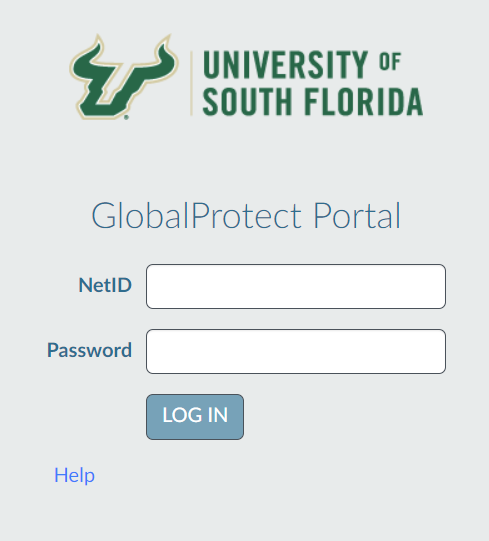
Click https://vpn.usf.edu
Enter your NetID and Password and select LOG IN.
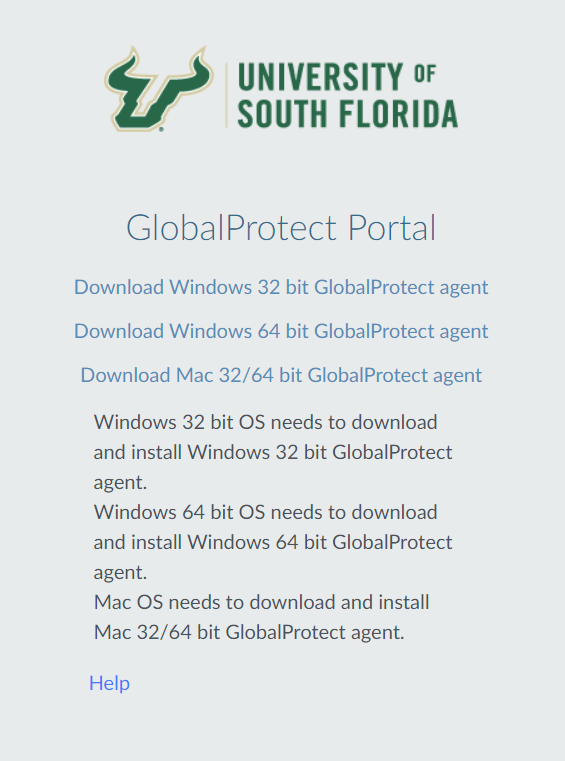
Select the download option for your computer's operating system.
Windows
If you are unsure whether the operating system is 32-bit or 64-bit, contact your system administrator before proceeding.
Installing GlobalProtect
Once installed, GlobalProtect launches automatically when the device starts or restarts.
If you did not disconnect before shutting down or restarting, it will attempt to reconnect to the VPN after you log in.
Installing for Windows OS
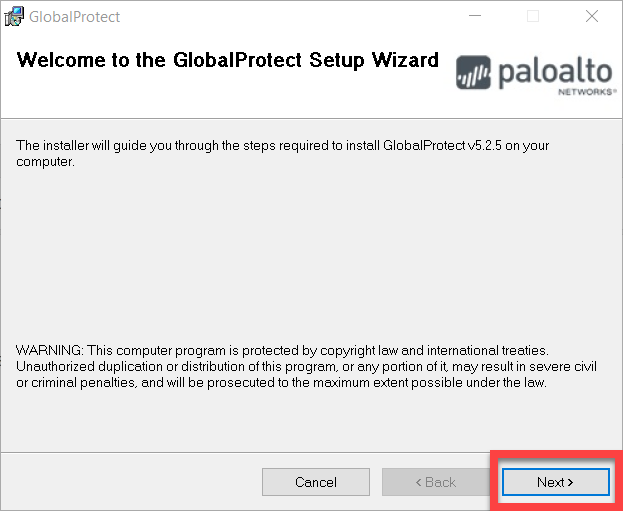
Open the downloaded file named GlobalProtect.msi.
In the GlobalProtect Setup Wizard, select Next.
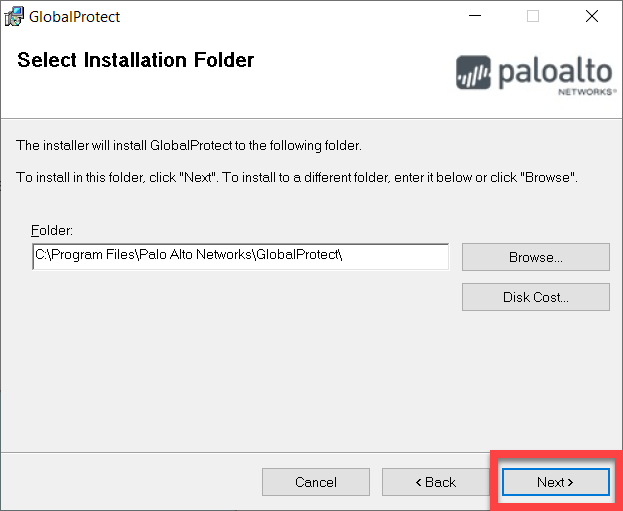
Select Next to accept the default installation folder (C:\Program Files\Palo Alto Networks\GlobalProtect), or select Browse to choose a different location.
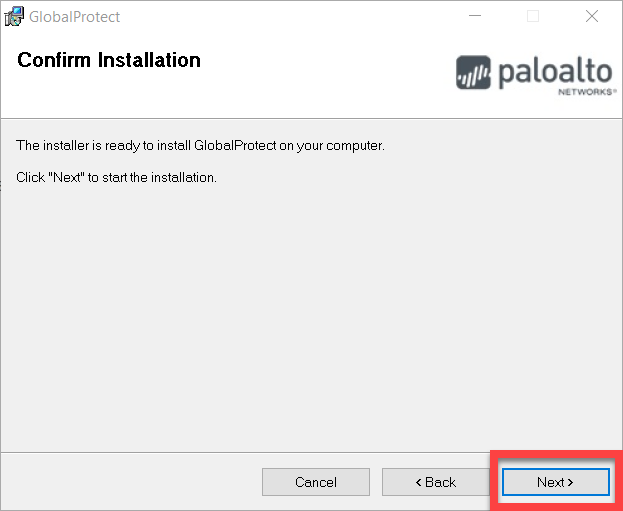
Select Next to confirm the installation.
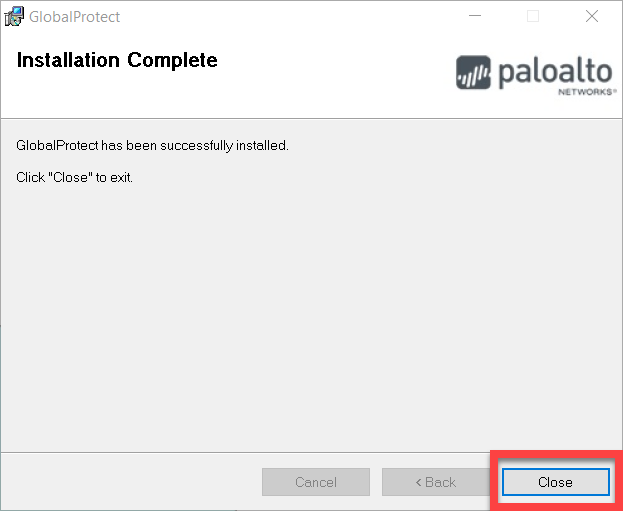
Select Close once the installation is complete.
Installing for macOS
Open the downloaded file named GlobalProtect.pkg.
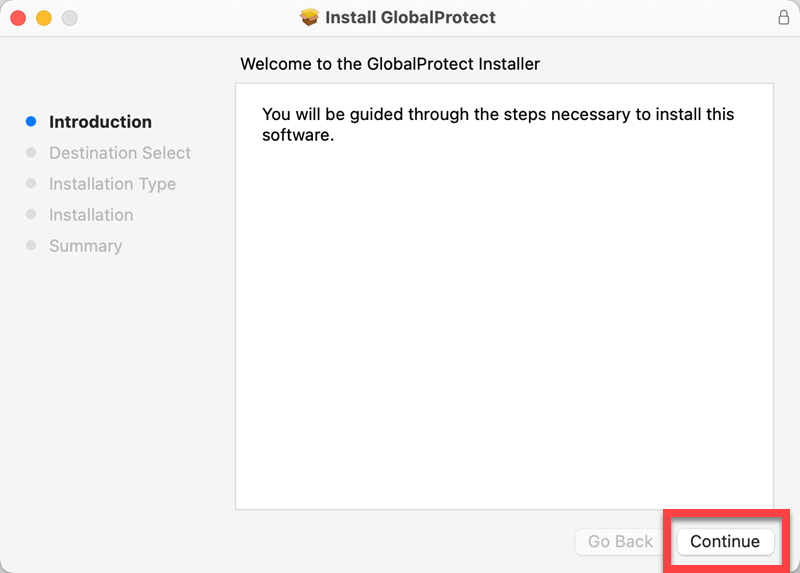
In the GlobalProtect Setup Wizard, select Continue.
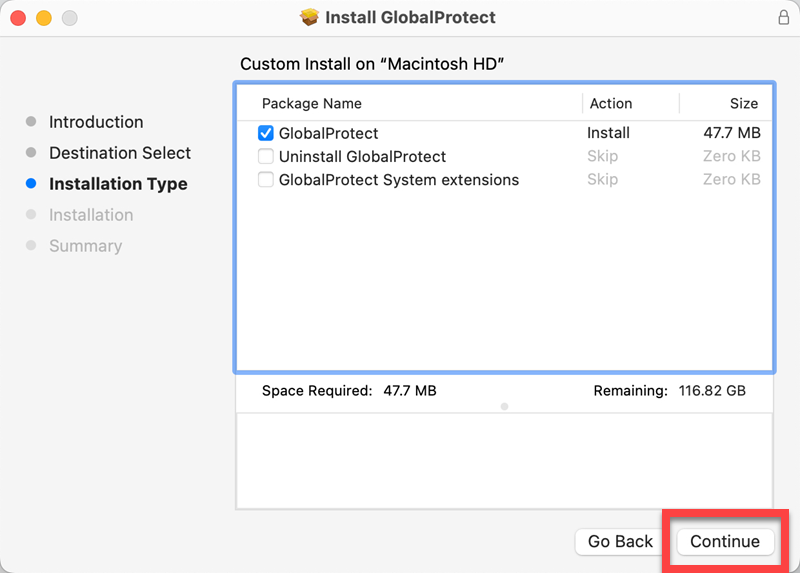
Ensure GlobalProtect is checked, then select Continue.
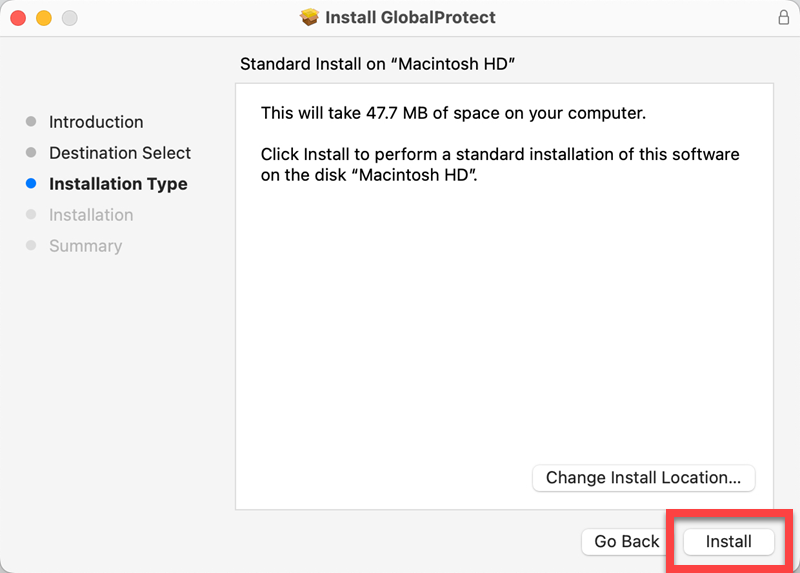
Select Install to begin.
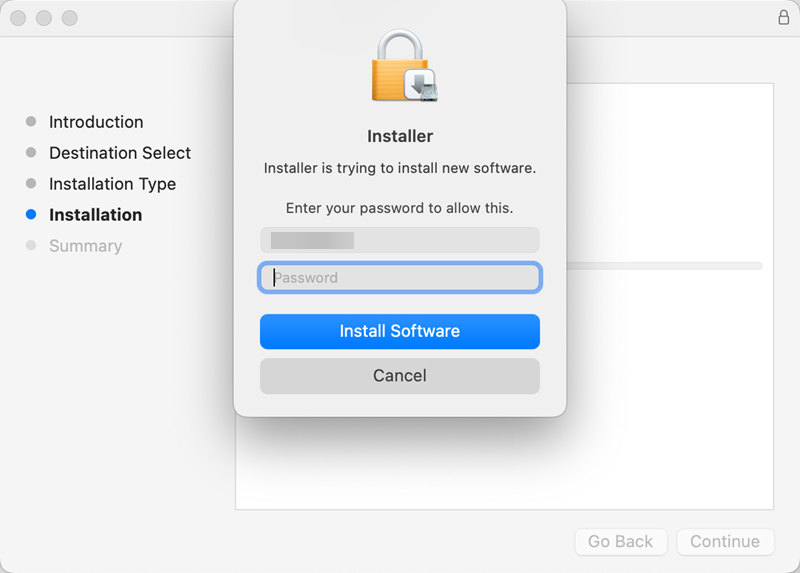
Enter your Mac password, then select Install Software.
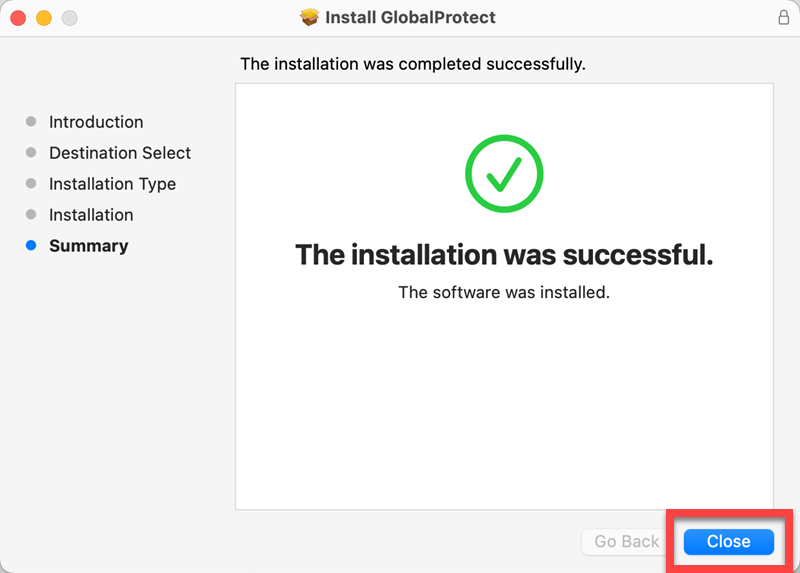
Select Close once the installation is complete.
Launching and Logging into GlobalProtect
Launching in Windows OS
Starting 2/24/2026, GlobalProtect will no longer start automatically when Windows devices boot.
To re-enable this feature, follow these instructions: Re-Enable at Startup for Windows
Click the caret in the taskbar at the lower right of the screen.
Select the globe icon.
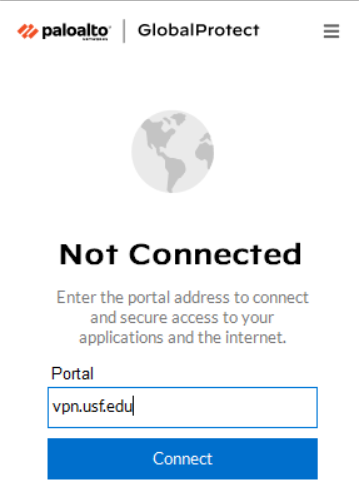
Enter vpn.usf.edu in the Portal field, then select Connect.
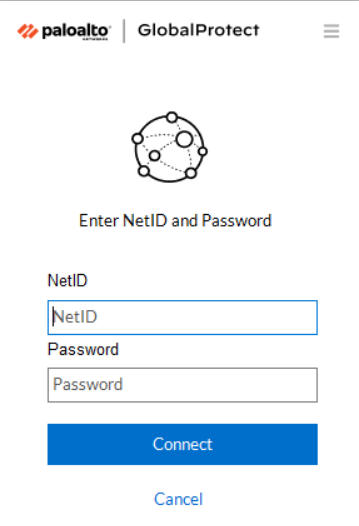
Enter your NetID and password, then select Connect.
Launching in macOS
Click the globe icon in the upper-right corner of the toolbar.
Select Get Started.
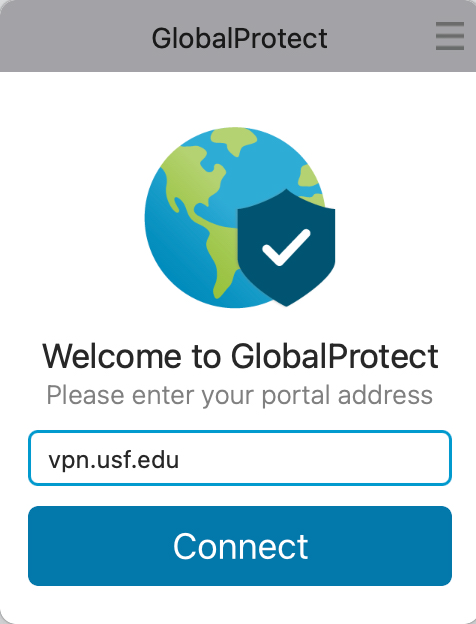
Enter vpn.usf.edu in the Portal field, then select Connect.
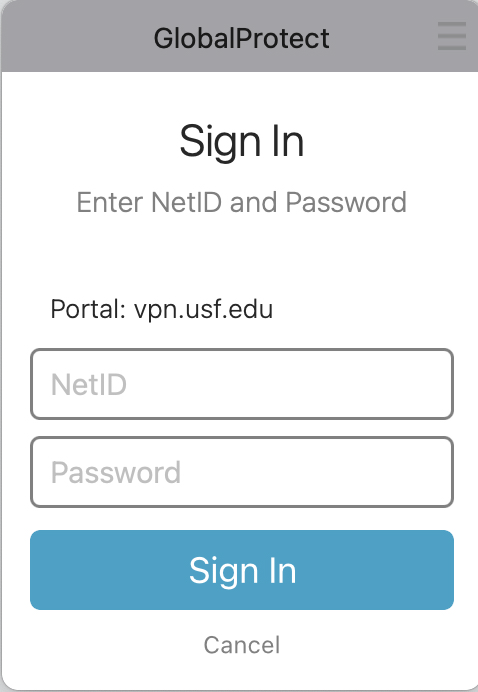
Enter your NetID and Password and select Sign In.
Re-Enable at Startup for Windows
Right-click the taskbar and select Task Manager.
Select the Startup apps icon in the left column.
Scroll down and select PanGPA.
Right-click PanGPA and select Enable.