Remote Desktop Access Instructions
- Kimberly Adkins
- Patrick Kluge (Deactivated)
- Johnathan Keyser
Overview
Two secure methods are available for remotely accessing on-campus Windows computers:
- Virtual Private Network (VPN)
- Remote Desktop Gateway
Both options ensure a protected connection when accessing university computing resources from off-campus locations.
You must be connected to the USF VPN in order to remote connect to any device no matter the method.
For information on how to download, install, and setup the VPN, please visit VPN - Palo Alto GlobalProtect.
If your job duties require you to use a remote access solution, please contact the USF IT Service Desk while on campus and in front of the machine you will be connecting to for setup and configuration.
Please call 813-974-4357 or visit https://itchat.usf.edu to have the setup and configuration done for you.
Finding your USF computer's information
You will need to know the USF computer’s name and IP address in order to be able to remote into it from another location.
Windows 10/11
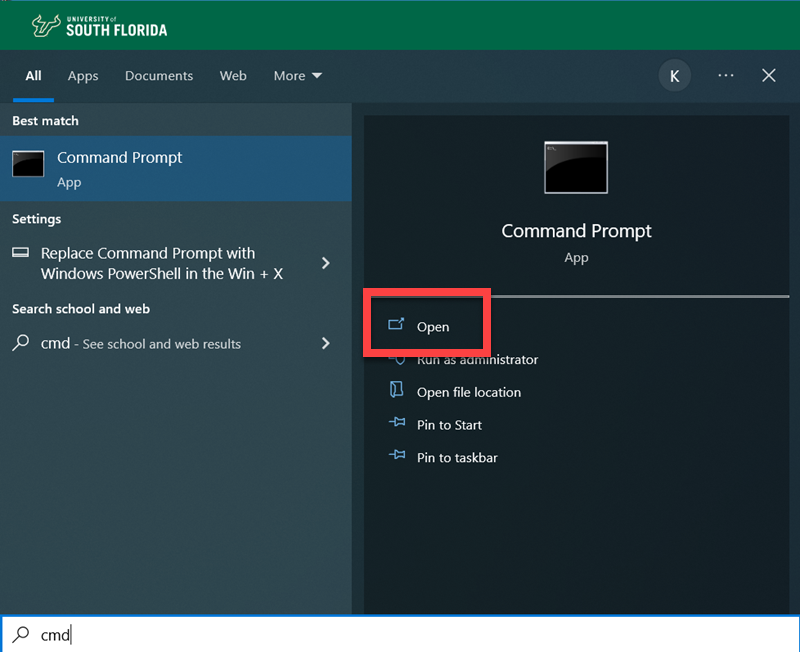
- Select the Windows logo in the lower left.

- Type CMD to search for Command Prompt and select Open.
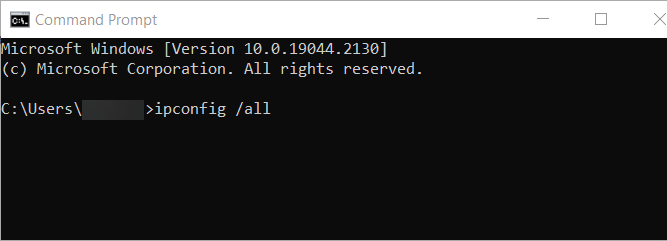
- Type ipconfig /all and hit enter.
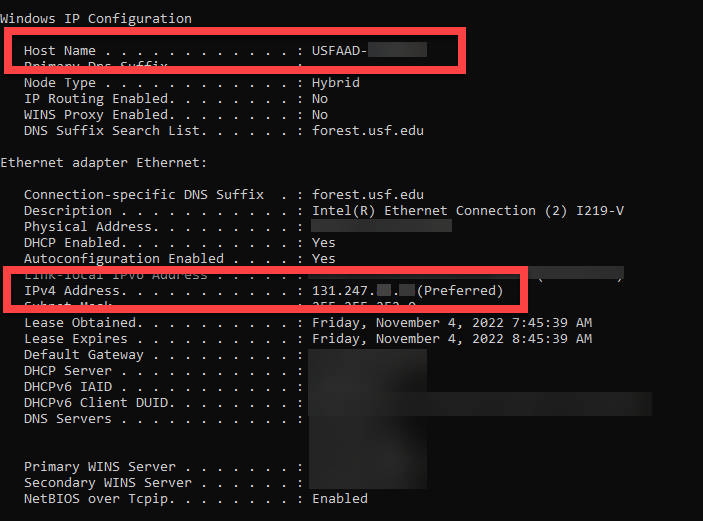
- The computer name will be listed as Host Name and the IP address will be listed as IPv4 Address and should start with 131.247.
Connecting from a Remote Computer
After the USF IT Service Desk configures your machine for remote access, you can connect using one of two methods:
- Remote Desktop Connection
- Remote Desktop Gateway
Follow the instructions below to establish a remote connection using your preferred method.
If remoting into a recently deployed device using IT's Modern Endpoint Management, you will need to first log into VPN.usf.edu
Windows
Remote Desktop Connection
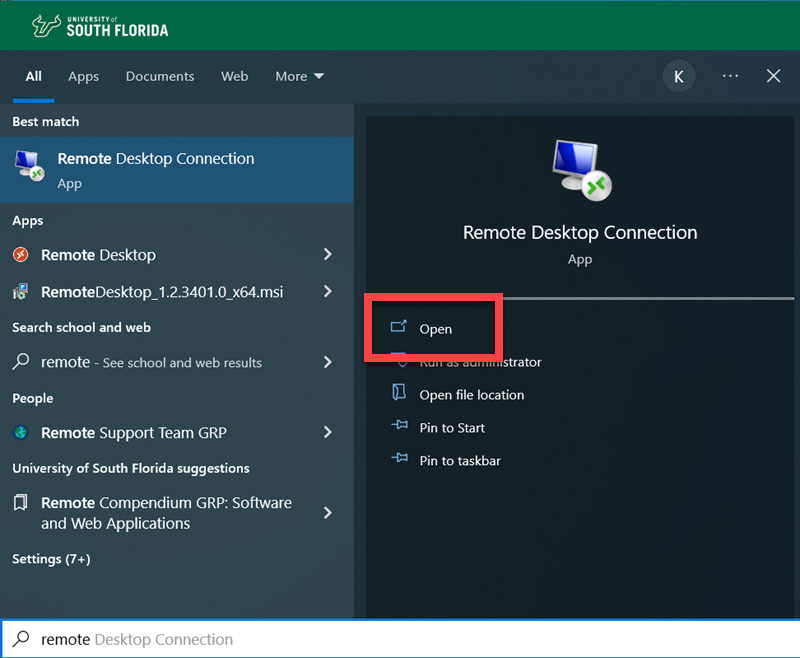
- Select the Windows logo in the lower left.

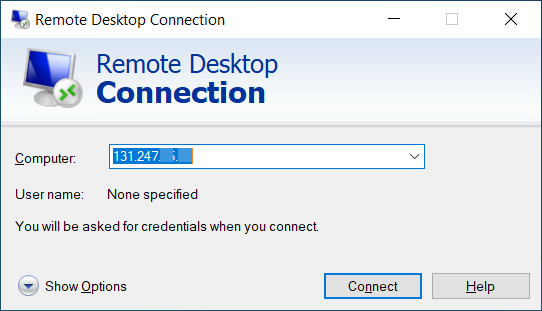
- Type Remote Desktop Connection to search for the program and select Open.
- Enter the on-campus computer's IP address under Computer.
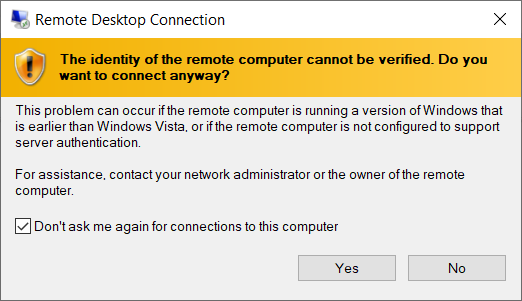
- Select Yes to connect to the on-campus computer.
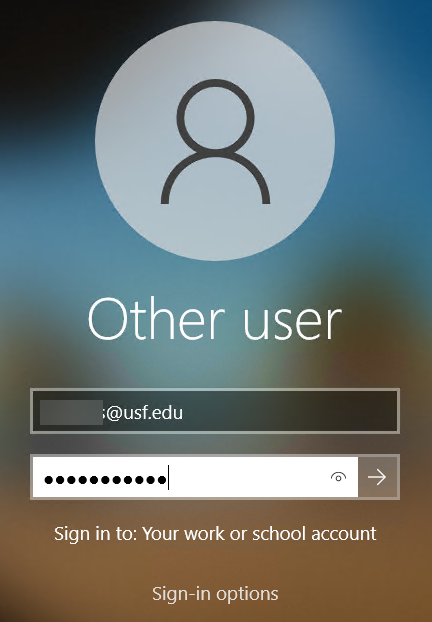
- Enter your USF email address and password as you normally do to sign into the computer.
Remote Desktop Gateway
- Navigate to http://usfweb.usf.edu/remote/
- Enter your NetID@usf.edu and select Next.
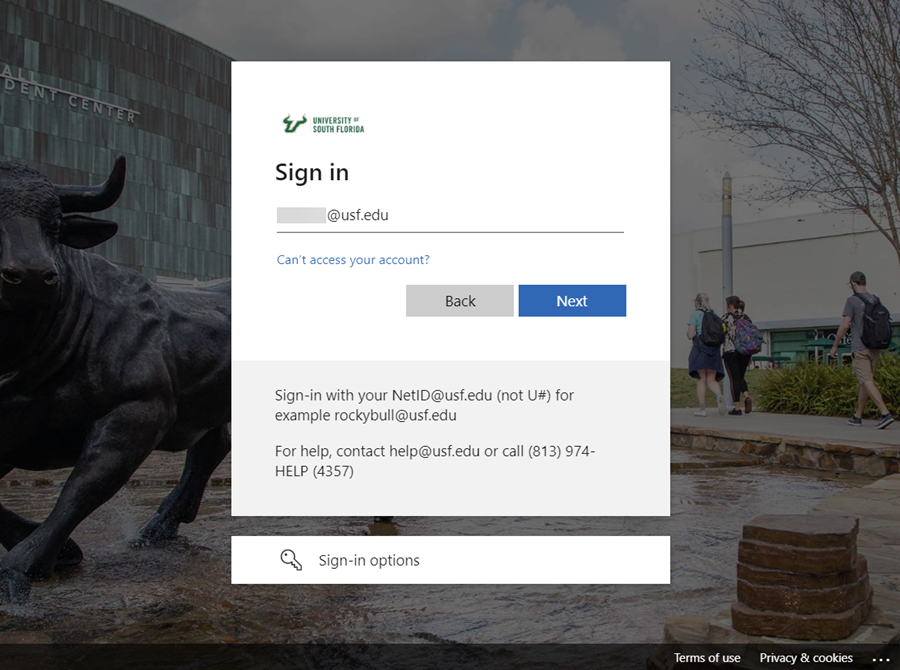
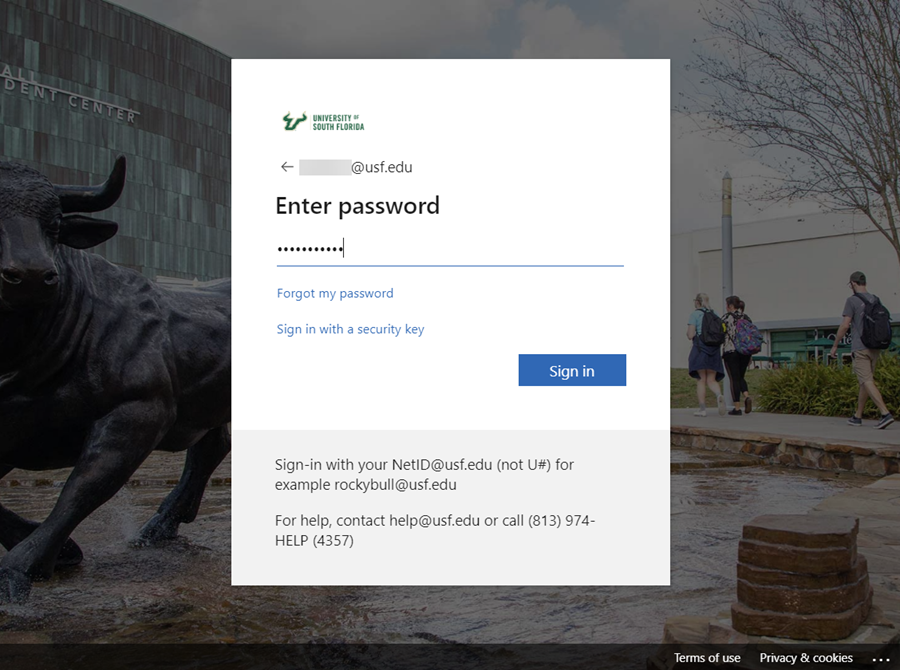
- Enter your USF password and select Sign in.
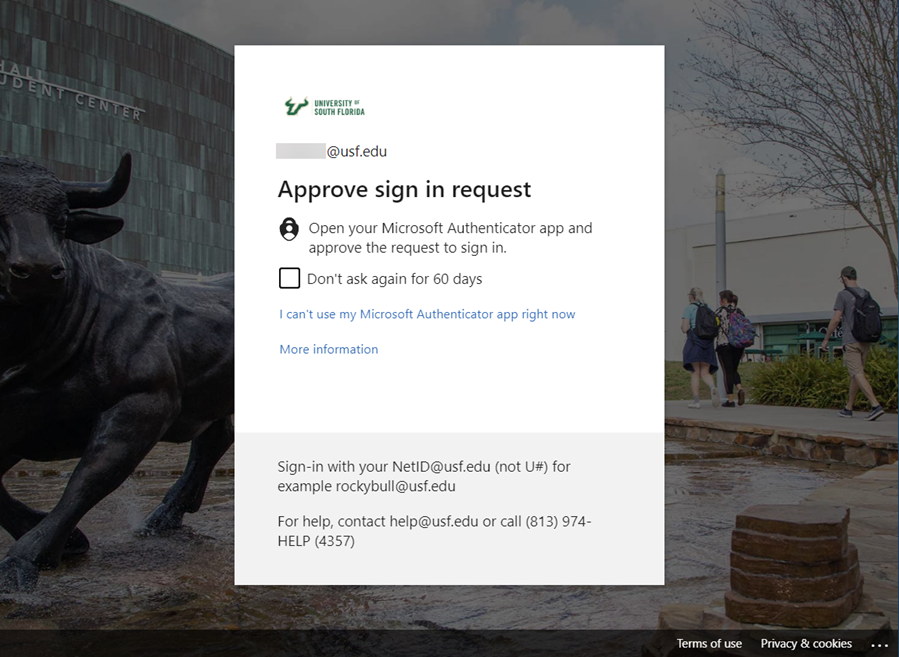
- Approve the sign in through your MFA device.
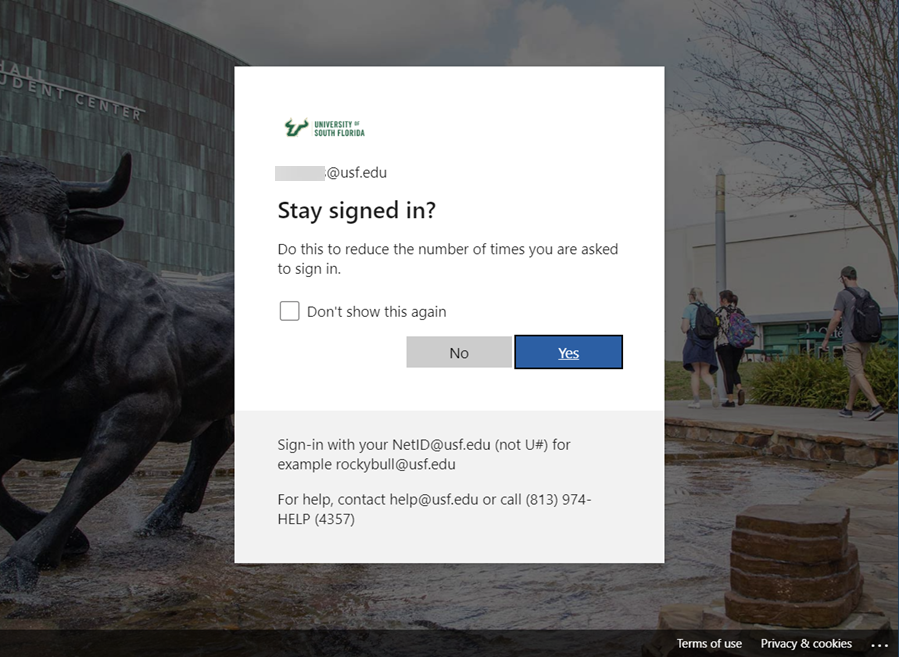
- Select Yes.
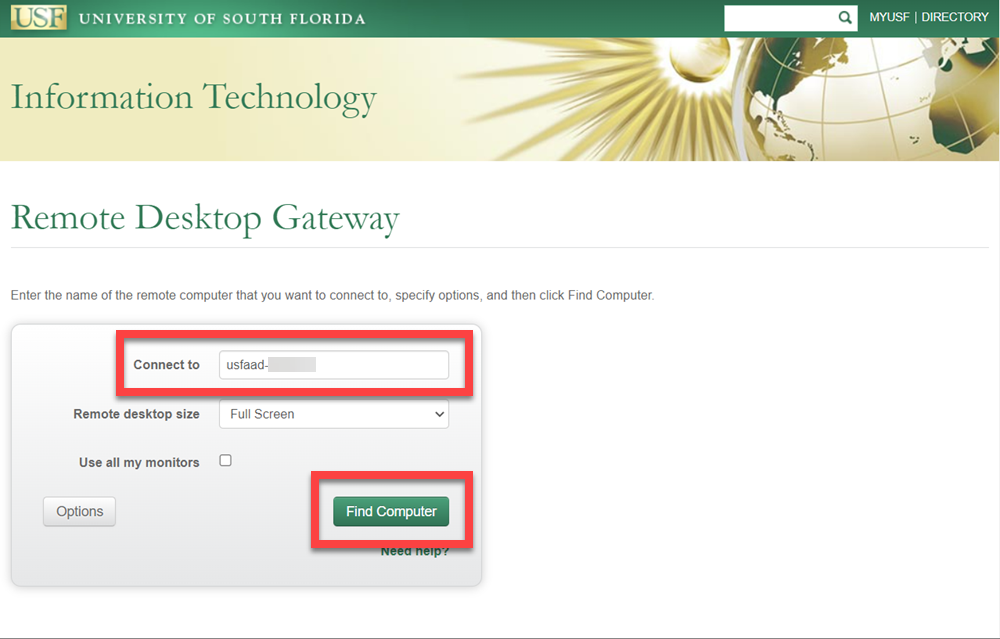
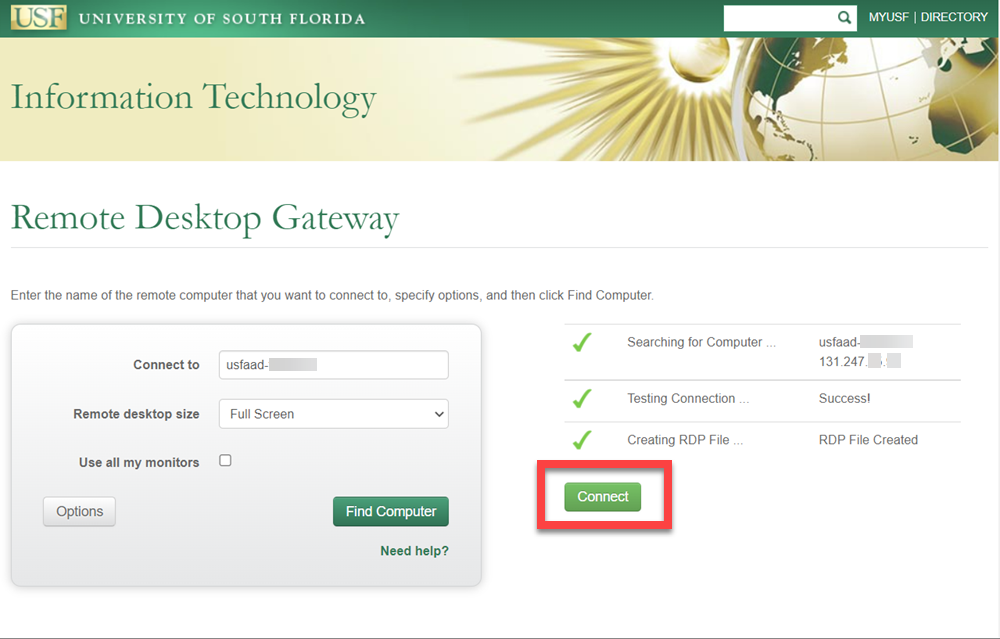
Enter the on-campus computer's IP address or computer name and select Find Computer.
If your on-campus computer has more than one monitor, and you wish to view all of them when remoted in, place a checkmark next to 'Use all my monitors'.
RDG will go through a series of checks (computer is found, awake, and the connection is solid) and display the results to you.- Select Connect once the check is completed successfully. RDG will download a ‘USFRemoteAccess.rdp’ file.
Open the USFRemoteAccess.rdp file.
Security window popped up? Click Connect- Enter your USF email address and password as you normally do to sign into the computer.
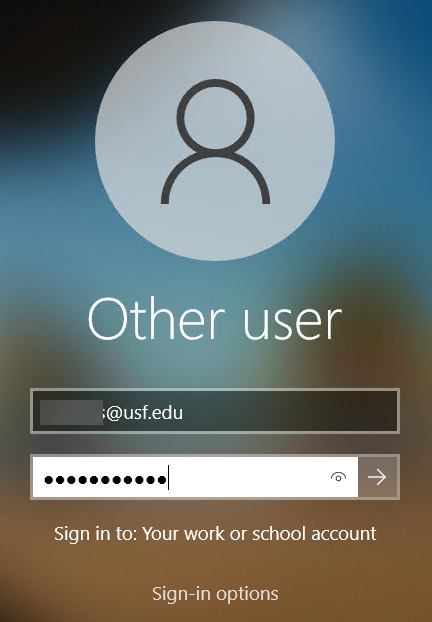
Once you have completed this process, you will have a window to your destination computer and may use it as if you were sitting in front of it. When you are finished, you can simply log out of your remote computer and the window will close.
Mac
If you are using a Macintosh computer from home to connect to your newly deployed PC on campus, you must contact USF IT Remote Support to have a configuration adjustment made to your work system.
This must be done on campus while logged into the newly deployed machine.
Please call 813-974-4357 or visit itchat.usf.edu to have this work done for you.
- Launch the App Store

- Search for the Microsoft Remote Desktop and select GET.
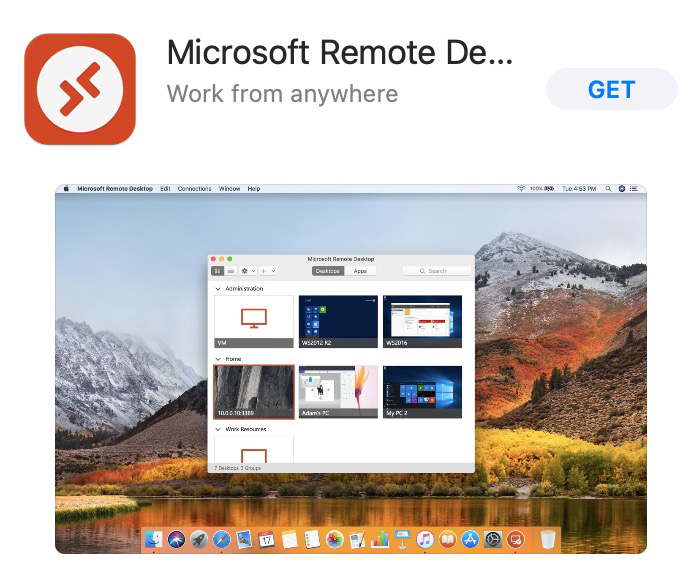
- Enter your credentials for your Apple account
- Launch Microsoft Remote Desktop

- Select Add PC.
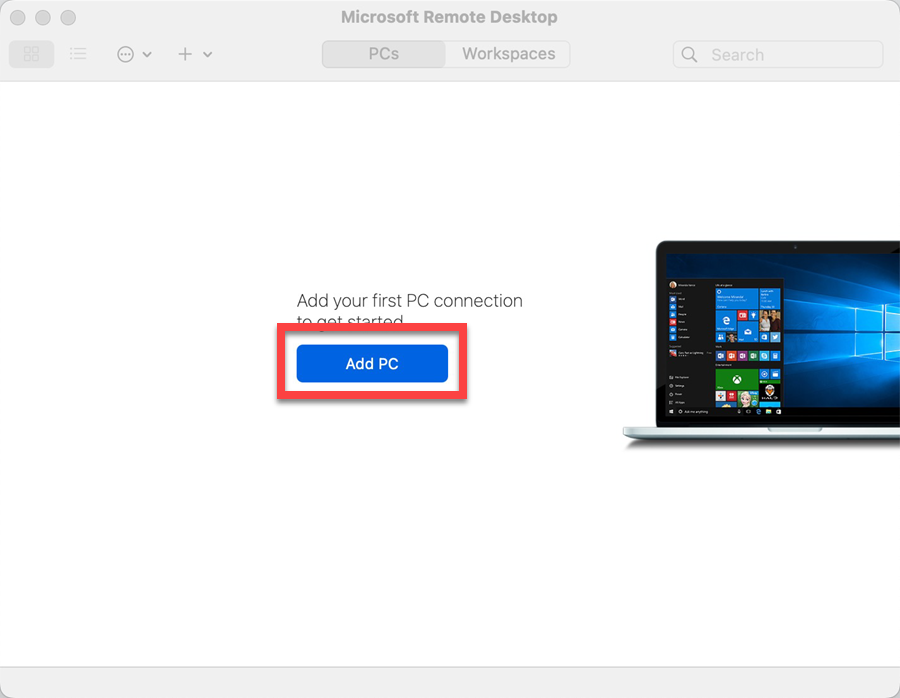
- Enter the on-campus computer's IP address under PC Name.
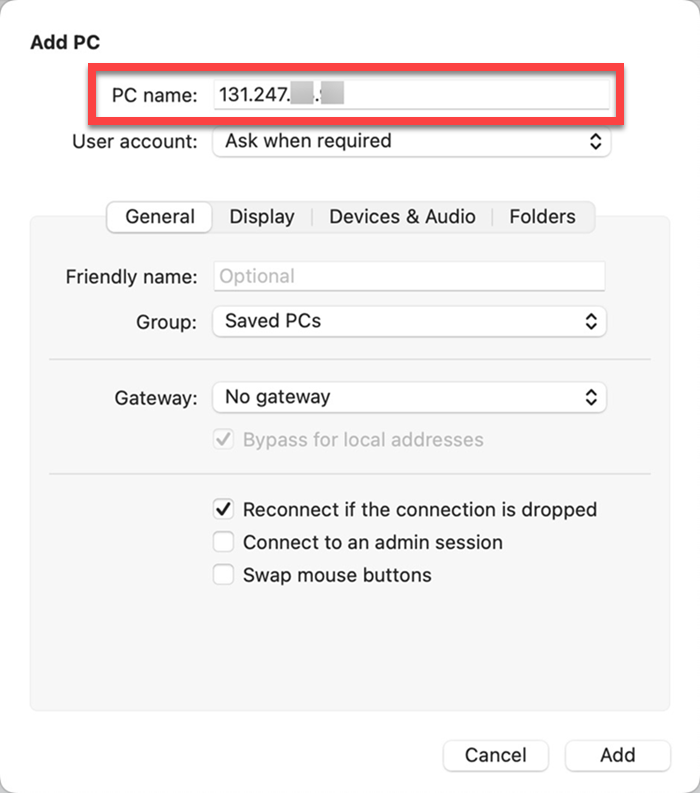
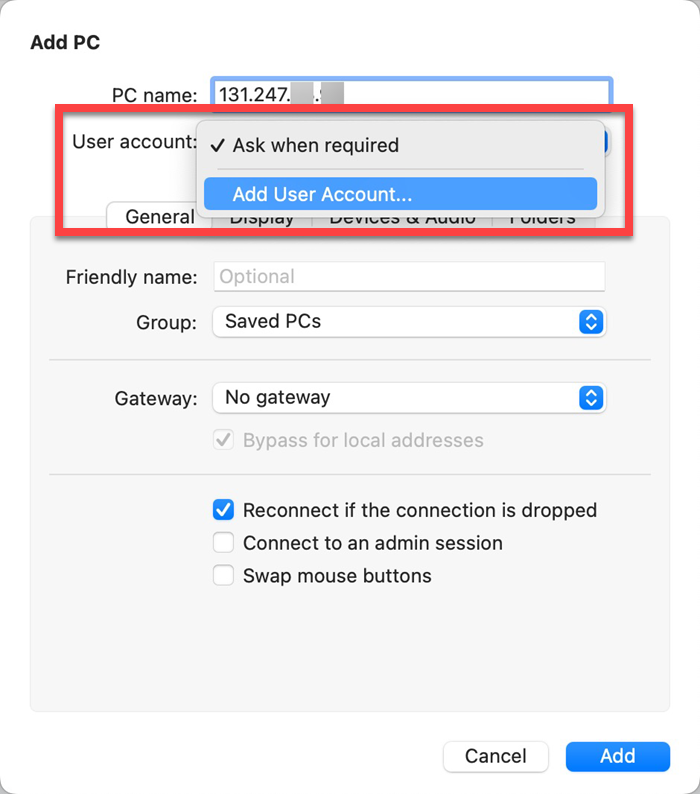
- Click the drop down next to User Account and select Add User Account....
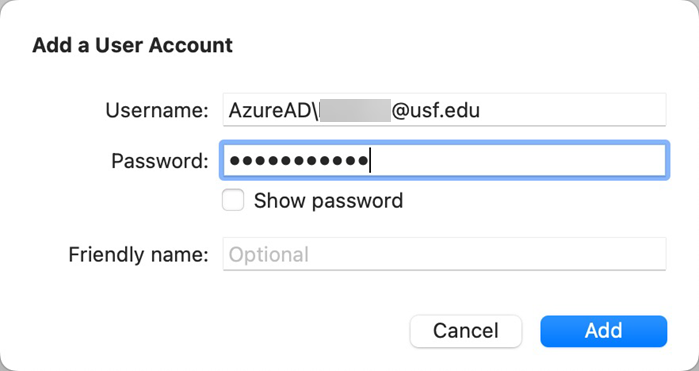
- Enter the following information and then select Add.
- Username: AzureAD\<netid>@usf.edu
- Password: Your NetID Password
- Click the drop down next to Gateway and select Add Add Gateway....
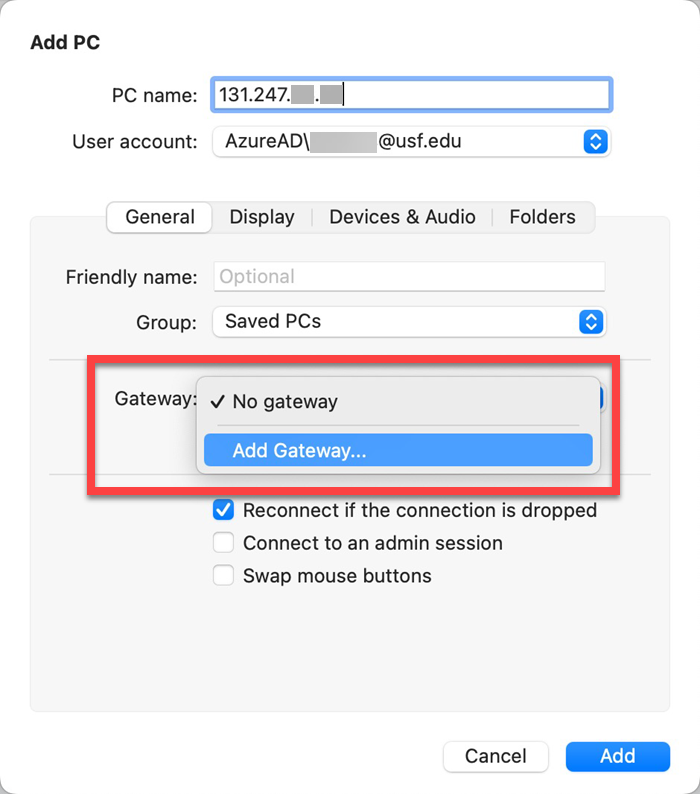
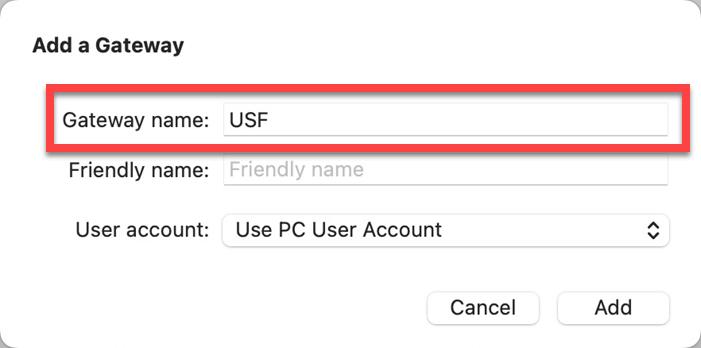
- Enter USF as the Gateway name.
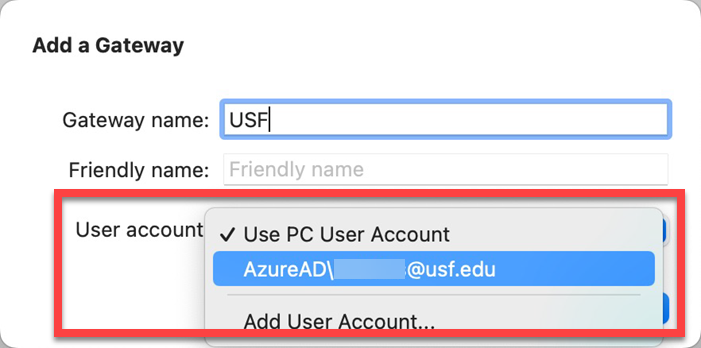
- Click the drop down next to User Account and select the AzureAD account created earlier.
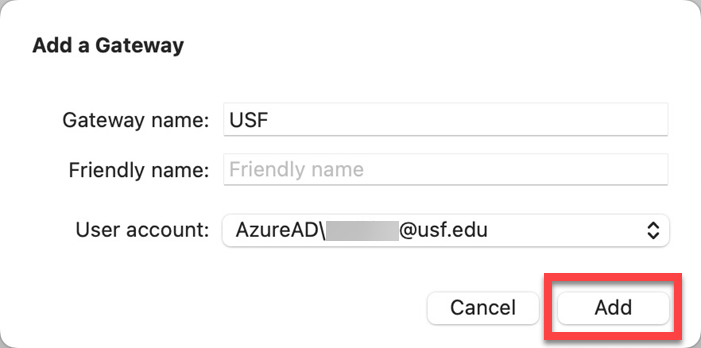
- Select ADD.
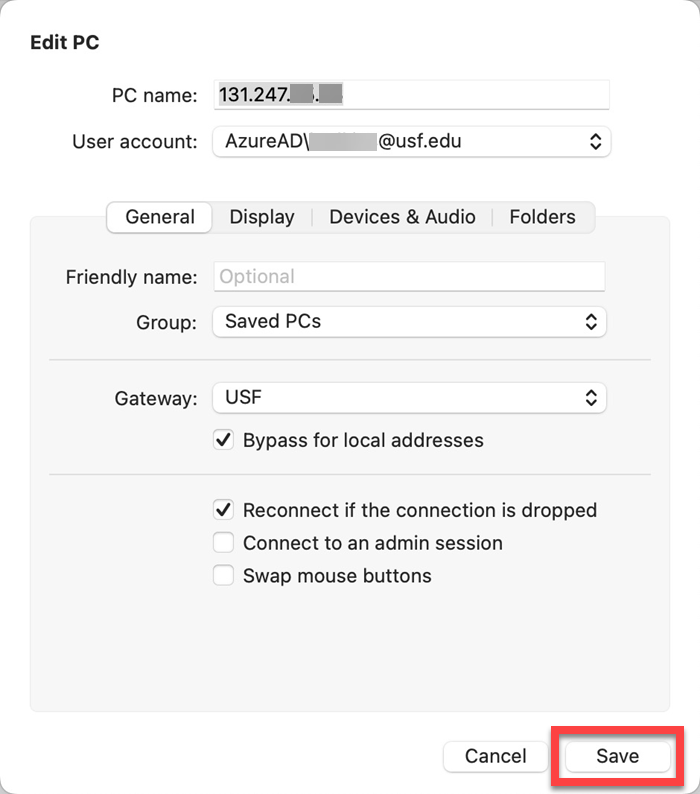
- Select Save.
- Click on the connection created to connect to the on-campus computer.
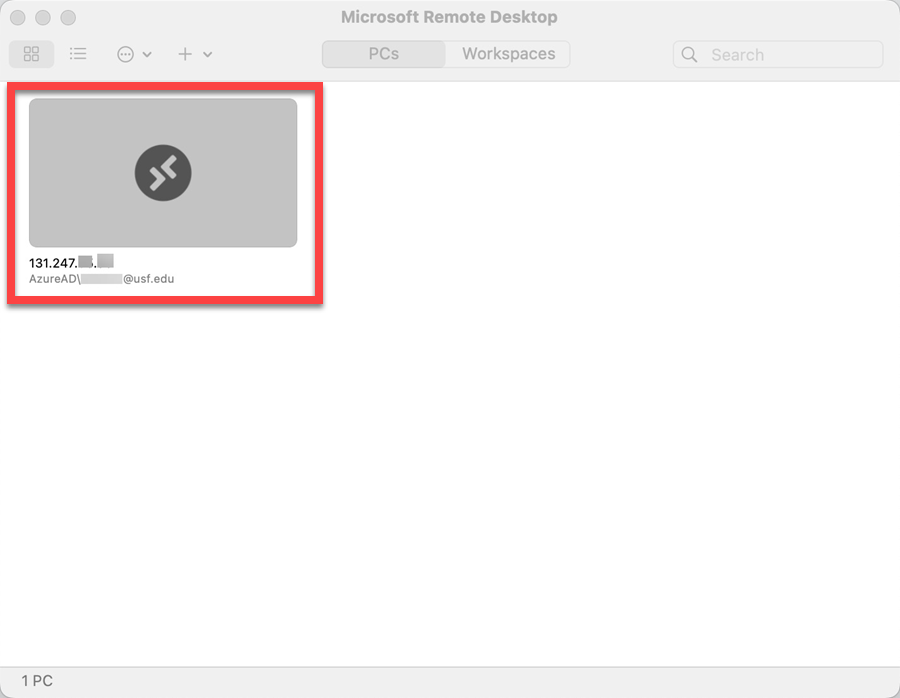
- Select Connect.
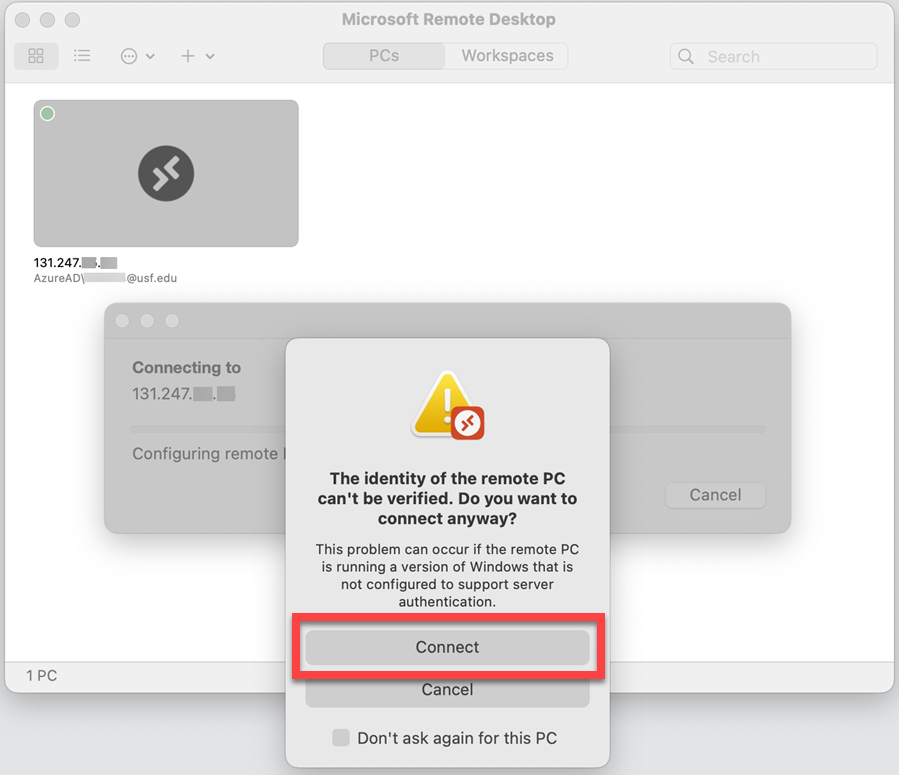
- Enter your USF email address and password as you normally do to sign into the computer.