Sitecore - How to Log In
- Alyssa Wahlsmith
- Sandra Meadows
- Christina Freeman
Logging Into Sitecore
This page of the user guide will help Sitecore Contributors log in to Sitecore so that they are able to edit their pages. If you are not a Sitecore Contributor, you will have to take Sitecore Training before you are given access to the Sitecore editor.
How to Log In
Sitecore is only accessible from web browsers such as Chrome and Microsoft Edge. Sitecore will not function properly in Internet Explorer, Firefox, or Safari (MacOS)..
Go to the USF Single Sign-On Sitecore website at cms.health.usf.edu/sitecore/login
Click USF Single Sign-On. (see image below)
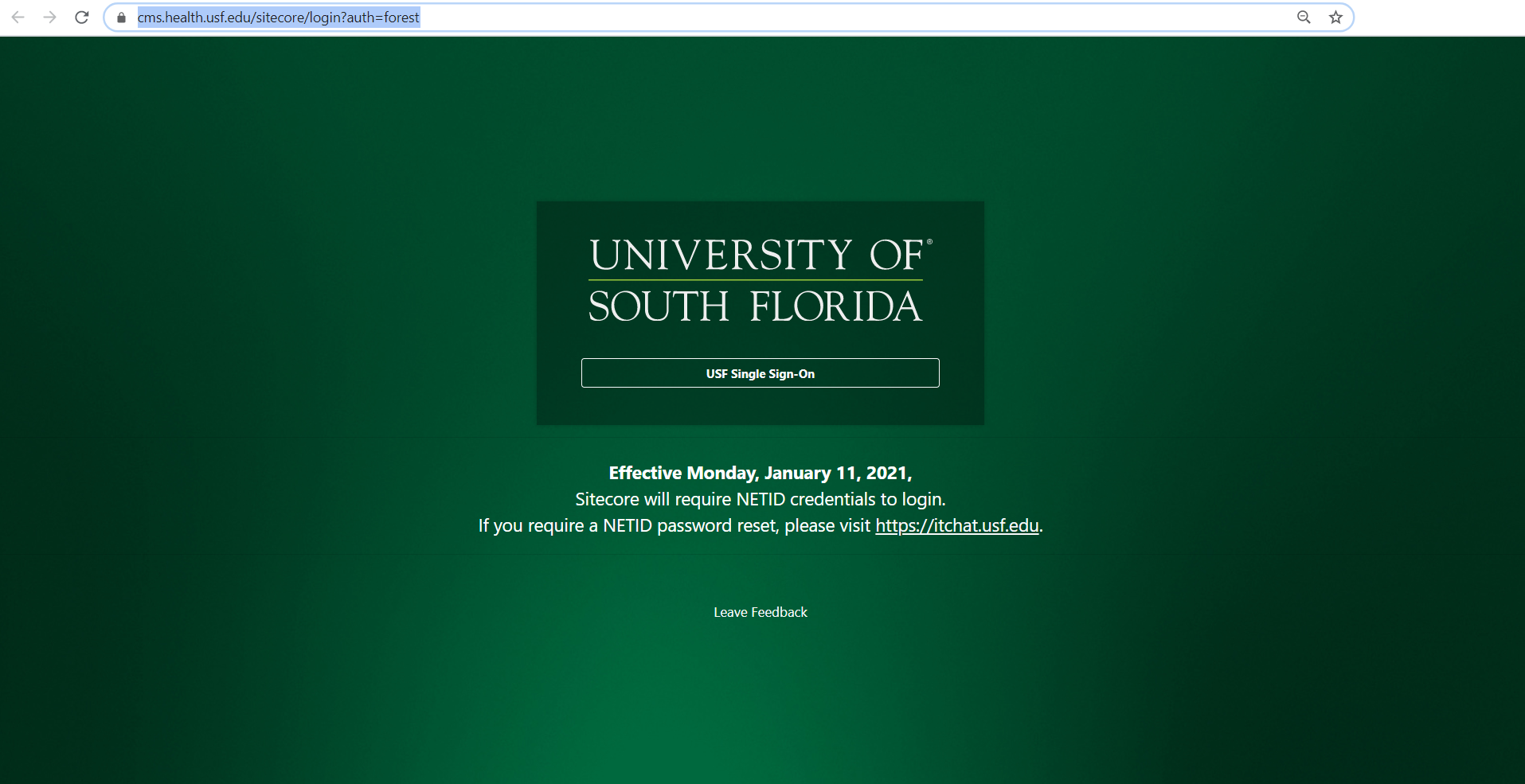
You will be redirected and asked to sign into your USF Single Sign-On email.If you're already signed into your email / SSO, you will be immediately directed to the Sitecore Launch page
Having Trouble Logging In?
Try clearing your cache first.
Visit the How to Clear Browser Cache documentation for help